
Fliki
Summary
Convert PowerPoint presentations into engaging videos effortlessly with AI voiceovers and customization options.
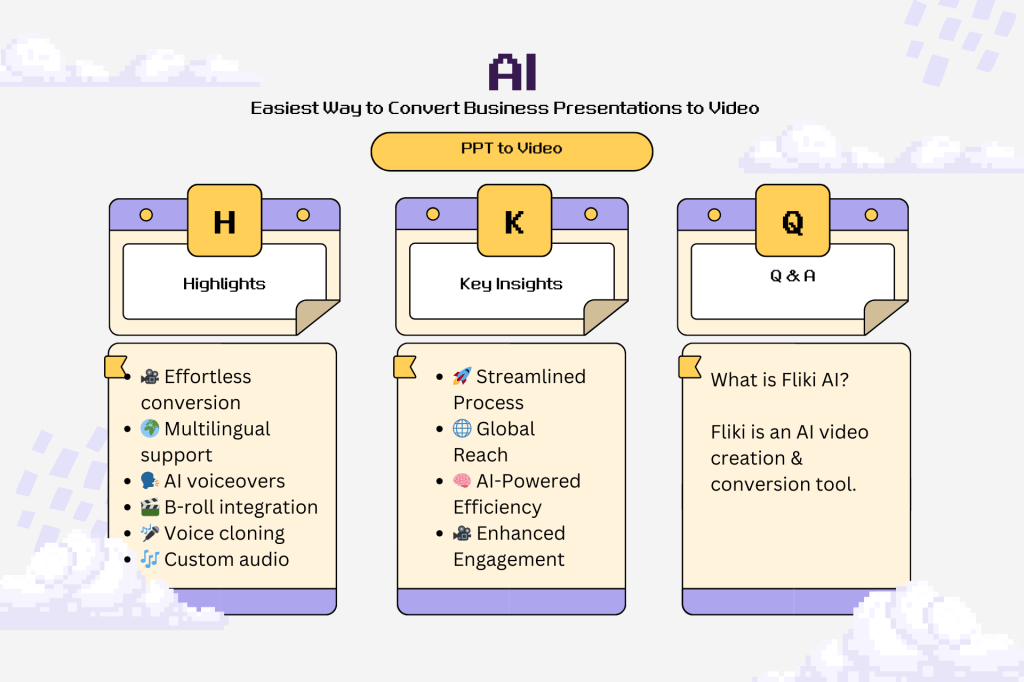
Highlights
- 🎥 Effortless conversion: Turn PPT slides into videos in just a few clicks.
- 🌍 Multilingual support: Create videos in over 80 languages and various dialects.
- 🗣️ AI voiceovers: Automatically generated voiceovers save time and enhance engagement.
- 🎬 B-roll integration: Add dynamic media clips to highlight key points in your presentation.
- 🎤 Voice cloning: Personalize your content with lifelike AI voices in multiple languages.
- 🎶 Custom audio: Choose background music or let AI generate it for you.
- 📩 Easy sharing: Download your video and receive an email notification when it’s ready.
Key Insights
- 🚀 Streamlined Process: The software simplifies the video creation process, allowing users to focus on content rather than technicalities, enhancing productivity and efficiency.
- 🌐 Global Reach: With support for numerous languages and dialects, this tool caters to international audiences, making it versatile for various markets.
- 🧠 AI-Powered Efficiency: The auto-generated scripts and voiceovers leverage AI technology, significantly cutting down the time needed for manual input, thus enabling faster project turnaround.
- 🎥 Enhanced Engagement: Incorporating B-roll and dynamic media elevates the presentation quality, making it more engaging and captivating for viewers.
- 🤖 Customization Flexibility: Users can personalize their videos with voice cloning and avatars, creating a unique and relatable brand presence.
- 🎵 Creative Control: The option to choose or generate background music allows users to maintain a cohesive brand identity and enhance the overall video experience.
- 📈 Marketing Potential: This tool opens new avenues for businesses to create polished videos for marketing and internal communications, ultimately driving engagement and growth.
Introduction
In today’s fast-paced digital world, conveying your message effectively is crucial. Transforming your PowerPoint presentations (PPT) into dynamic videos can enhance engagement and reach. This guide will walk you through the easiest way to convert your business presentations to video, utilizing advanced features like AI voiceovers and voice cloning.
Understanding the Importance of Video Presentations
Why Convert PPT to Video?
Incorporating videos into your presentations can significantly increase audience retention and engagement. Videos provide a dynamic way to deliver information, making complex ideas more digestible.
Benefits of Using AI Technology
AI technology streamlines the video creation process, allowing for quick and efficient conversions with professional-quality results. Features like voice cloning and auto-generated scripts minimize effort while maximizing impact.
Step-by-Step Guide to Convert PPT to Video
Step 1: Accessing the Tool
To start, navigate to the files page of your chosen video conversion platform. Look for the “New File” option to begin your project.
Step 2: Naming Your Project
Input an appropriate name for your file. For example, “Investment Proposal” is a clear and concise choice.
Step 3: Selecting Language and Dialect
Choose from over 80 languages and 100 dialect options. For our example, we’ll select English (United States).
Step 4: Uploading Your PowerPoint Slides
Upload your PPT files. The tool will automatically analyze the content and prepare for video conversion.
Step 5: Customizing Your Video
Voiceover Options
Select from various AI-generated voiceovers. You can customize the voice for each scene or apply a consistent voice throughout the video.
Adding B-Roll Clips
Enhance your video by adding B-roll clips that correspond with your voiceover. This visual element can help illustrate key points more vividly.
Background Music and Sound
Choose background music from a premium stock library or upload your own. Adjust volumes to ensure the music complements the voiceover without overpowering it.
Step 6: Final Touches
Adding Watermarks
Protect your content by adding your logo as a watermark. Adjust its size and opacity for a professional finish.
Previewing Your Video
Before finalizing, preview your video to ensure all elements align well and the pacing feels right.
Step 7: Exporting Your Video
Once satisfied, select the desired resolution and format (e.g., MP4 or MOV) and initiate the export. You’ll receive an email notification when your video is ready for download.
Use Cases for Video Presentations
Corporate Training
Transform internal training sessions into engaging videos that employees can revisit as needed.
Marketing Presentations
Create compelling marketing videos that showcase your products and services, appealing directly to your target audience.
Educational Content
Educators can convert lecture materials into videos, providing students with accessible resources for review.
Conclusion
Converting your business presentations to video has never been easier. By leveraging AI technology, you can produce high-quality, engaging content that resonates with your audience. Whether for corporate training, marketing, or educational purposes, this method will save you time while elevating your presentations.
By following this comprehensive guide, you’re now equipped to turn any PowerPoint presentation into a dynamic video effortlessly. Embrace this innovative approach and watch your engagement soar!
Fliki: Frequently Asked Questions
Q1: What is Fliki?
A: Fliki is a video conversion tool.
Q2: What feature does Fliki offer?
A: Convert PPT to video.
Q3: How many languages can you create videos in?
A: 80+ languages.
Q4: What can be added to videos for enhancement?
A: AI voiceovers.
Q5: What is the target market mentioned?
A: Tech-savvy professionals.
Q6: What file format can videos be exported in?
A: MP4.
Q7: What can you upload to personalize your video?
A: Logo or image.
Q8: What type of audio can be customized?
A: Background audio.
Q9: What does the voice cloning feature allow?
A: Personalized audio.
Q10: What is the typical duration for the demo?
A: 3 to 5 minutes.

 Skipeon